We recently started a project with a client who had some very complex spreadsheets. They wanted the data from a complex spreadsheet to reside in CRM but the algorithms and formatting frequently changed. Essentially they wanted us to build a tool that was able to keep this data in CRM but was flexible enough to handle significant changes.
We got the idea to create an excel add-in that took in the appropriate data from the sheet and to write that data to CRM. Our initial thought was to create a CRM entity that contained the schema for a particular sheet. One particular fields' data was held in Cell X123 and so on. However, when I started the project it became clear that this might become a bit of a nightmare to maintain so instead we came up with the idea to use user defined functions (UDF's).
We wrote a series of UDF's that would store each piece of information for an entity and when triggered, write them all to CRM. The greatest part is that its completely dynamic. You only need to enter the name of the field, the entity and the value and the data is written into a temporary data structure. For example, the main UDF takes the value as its first argument, the field name as its second and the entity as its third. The function uses the Metadata service to verify that the field is a valid field and then stores the value. When the user presses the Write to CRM button, all of the data stored in the data structure is written directly to CRM. Since many users are familiar with excel and excel functions, it makes it an easy way for an end-user to import complex data into CRM as well as gives them the ability to create their own customizable interface.
Showing posts with label crm. Show all posts
Showing posts with label crm. Show all posts
Wednesday, August 19, 2009

Friday, December 5, 2008
Crm 4.0 Rollup 1 and CRM's Auto-Update Feature
With the first roll-up now available for CRM 4.0, I'm sure there are administrator's out there dreading deploying the client patch on each and every afflicted computer. I just wanted to take a moment to uncover a post from the Microsoft Team blog that could save you a lot of trouble in the future: https://community.dynamics.com/blogs/cscrmblog/archive/2008/05/08/crm-client-autoupdate.aspx
Essentially it outlines how to set up the auto-update functionality in the outlook client from the server. It does mention that you need to add a key to the registry of each computer that has CRM but remember you can easily deploy the key via netlogon scripts deployed using active directory.
Essentially it outlines how to set up the auto-update functionality in the outlook client from the server. It does mention that you need to add a key to the registry of each computer that has CRM but remember you can easily deploy the key via netlogon scripts deployed using active directory.
Monday, October 27, 2008
Dymo label printing straight from CRM
Now most CRM's have the ability to print batched labels in one form or another and most CRM's also have the ability to print an envelope but many lack easy integration with one of the most common office automation tools available: The label printer.
Fortunately, DYMO has made it easy for us since they provide easy access to their SDK which has a number of well documented examples on how to implement DYMO label printing directly from your own application (or in this case Javascript).
For this basic example, were going to encapsulate our code inside of a button located on a the contact form.
The Button code that goes inside of the contact section in ISV Config customizations:
The Javascript to print the label:
For this to work, the dymo label software needs to be installed on any workstation that needs to use this customizations with a dymo printer properly configured.
Fortunately, DYMO has made it easy for us since they provide easy access to their SDK which has a number of well documented examples on how to implement DYMO label printing directly from your own application (or in this case Javascript).
For this basic example, were going to encapsulate our code inside of a button located on a the contact form.
The Button code that goes inside of the contact section in ISV Config customizations:
<Button Icon="/_imgs/ico/print_ico.gif" JavaScript="<JSCRIPT CODE GOES HERE>" Client="Web, Outlook" AvailableOffline="false">
   <Titles>
      <Title LCID="1033" Text="Print Label" />
   </Titles>
   <ToolTips>
      <ToolTip LCID="1033" Text="Prints Dymo" />
   </ToolTips>
</Button>
The Javascript to print the label:
// Initializes the basic required variables
var texttocopy = '';
var DymoAddIn, DymoLabel;

// The following commented line prompts the user to add additional information to a label. This is useful if you design a custom label that requires the user to insert a special code
// var taginfo = prompt('Type of Label?', '');

// Set up the DymoAddIn object. This is the master object that actually prints the label
DymoAddIn = new ActiveXObject('DYMO.DymoAddIn');
// Label object where the label information is actually stored and passed to the dymo activex control
DymoLabel = new ActiveXObject('DYMO.DymoLabels');

// Set the taginfo field to blank if it's null. Used if you are using a special code for a label
// if(taginfo == null) { taginfo = ''; }

try
{
   // Add Company variable to texttocopy field if it exists and give it a newline
   if (crmForm.all.companyname.DataValue != null)
   {
      texttocopy += crmForm.all.companyname.DataValue + '\n';
   }

   // Add Firstname variable to texttocopy...
   if (crmForm.all.firstname.DataValue != null)
   {
      texttocopy += crmForm.all.firstname.DataValue + ' ';
   }
   // Add Lastname  variable to texttocopy...
   if (crmForm.all.lastname.DataValue != null)
   {
      texttocopy += crmForm.all.lastname.DataValue + '\n';
   }
   // If no Lastname then just a carraige return
   else
   {
      texttocopy += '\n';
   }

   // Lets check the various required address fields to make sure they exist
   if (crmForm.all.address1_line1.DataValue != null && crmForm.all.address1_city.DataValue != null && crmForm.all.address1_stateorprovince.DataValue != null && crmForm.all.address1_postalcode.DataValue != null)
   {
      texttocopy += crmForm.all.address1_line1.DataValue + '\n';
      // Address 2 isn't always used to lets make sure it exists
      if (crmForm.all.address1_line2.DataValue != null)
      {
         texttocopy += crmForm.all.address1_line2.DataValue + '\n';
      }
      // Add in the rest of the addresses
      texttocopy += crmForm.all.address1_city.DataValue + ', ' + crmForm.all.address1_stateorprovince.DataValue + '  '  + crmForm.all.address1_postalcode.DataValue + '\n';
   }

   // The dymo label software installs the label files into one of several locations. Use the label that corresponds to the type of label you are printing.
   if(DymoAddIn.Open('C:\\Documents and Settings\\All Users\\Documents\\DYMO Label\\Label Files\\LABEL.LWL'))
   {
      // Set the address to actual DymoLabel Object
      DymoLabel.SetAddress(1, texttocopy);
      // Insert custom text into a label
      // DymoLabel.SetField('INFOFIELD', taginfo);
      // Print the label
      DymoAddIn.Print(1, true);
   }
   // Default location of label file for older installations
   else if (DymoAddIn.Open('C:\\Program Files\\DYMO Label\\Label Files\\LABEL.LWL'))
   {
      DymoLabel.SetAddress(1, texttocopy);
      // Insert custom text into a label
      // DymoLabel.SetField('INFOFIELD', taginfo);
      DymoAddIn.Print(1, true);
   }
   // Vista
   else if (DymoAddIn.Open('C:\\Users\\Public\\Documents\\DYMO Label\\Label Files\\LABEL.LWL'))
   {
      DymoLabel.SetAddress(1, texttocopy);
      // Insert custom text into a label
      // DymoLabel.SetField('INFOFIELD', taginfo);
      DymoAddIn.Print(1, true);
   }
   else
   {
      alert('Error: Label file Not Found!');
   }
}
catch(e)
{
   alert(e + ': ' + e.description);
}
For this to work, the dymo label software needs to be installed on any workstation that needs to use this customizations with a dymo printer properly configured.
Thursday, October 23, 2008
Dynamics CRM on Linux (Possibly Mac)
We were recently contacted by a client with a pretty difficult requirement: They had to be able to use CRM on Linux desktops. We have been searching for a solution that addresses accessing CRM via a mac for a while now but haven't had much of a call for using it on Linux workstations. There are a few solutions we've seen that relate to using VMware (such as in Matt Whittemann's post here) or running it in a virtual environment such as parallels.
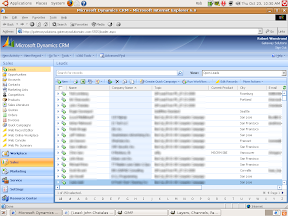
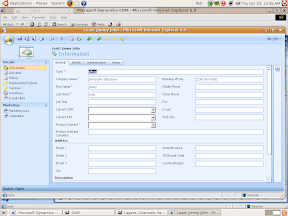
While researching this problem I happened to stumble across IEs4Linux. It's an installer that grabs the proper windows cabs, installs and then configures IE6(or 4/5) in a bottled wine instance. After some testing we concluded that it would provide a fairly stable environment for CRM on Linux. The screenshots below show CRM running in IE6 on a gnome desktop.
Performance was ok on an aging Celeron with 512mb's of memory. I would recommend something a little beefier for better performance. Keep in mind that this doesn't include the Microsoft Outlook client addin so still no way to integrate mail other than using the e-mail router and exchange rules to dump it in directly.
Performance was ok on an aging Celeron with 512mb's of memory. I would recommend something a little beefier for better performance. Keep in mind that this doesn't include the Microsoft Outlook client addin so still no way to integrate mail other than using the e-mail router and exchange rules to dump it in directly.
Subscribe to:
Posts (Atom)